
192.168.1.1 Admin
192.168.1.1 is a default gateway, a private IP address used by many home networks. You type it into a web browser to access your router’s admin panel. There you manage settings like your Wi-Fi name password and security controlling your entire local network from one central point.
Router administration and configuration.
Every home internet connection runs through a small but powerful address 192.168.1.1. It may look like a random number but this simple IP address is the key to your router’s control panel.
In simple terms 192.168.1.1 is your router’s “home base.” It is a private IP address used by most router brands including TP-Link D-Link Netgear and Linksys to help you access and configure your network safely.
How to Log In to 192.168.1.1 Without Confusion
Logging in to your router through 192.168.1.1 is not complicated at all. You do not need to be a tech expert just type the address into your browser and you Will see your router’s dashboard. From there you can adjust your Wi-Fi name update the password or tighten security.
Check Your Connection First: Before diving in make sure your device is actually on your home Wi-Fi not mobile data. If you are using a cable plug it directly into the router’s LAN port. Otherwise the login page wo not open at all. It is a bit like trying to open your garage from the neighbor’s driveway you need to be on your own network for it to respond.
Open Your Favorite Browser: Use whichever browser you prefer Chrome Safari Edge or Firefox all work perfectly fine. In the address bar type http://192.168.1.1 and press Enter. Double-check that you have entered the numbers correctly; a common mistake is typing 192.168.l.l with lowercase “L”s instead of ones.
Enter the Login Information: You Will now see a login box asking for your username and password. Most routers use admin for both by default, but not all. If that does not work flip your router around you will usually find the correct credentials printed on the label. You can also look them up in your provider’s manual or website.
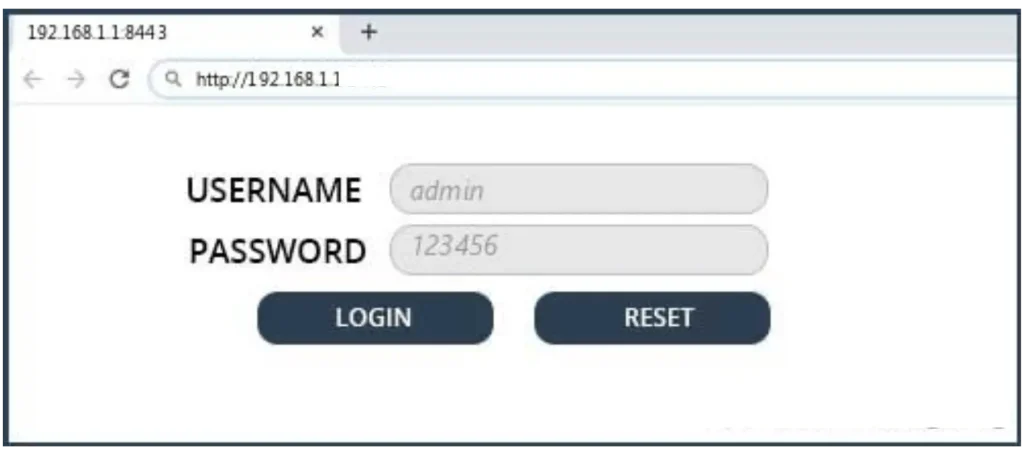
Explore Your Router’s Dashboard: Once you are inside you will land on the router dashboard think of it like the cockpit of your internet connection. You will find tabs for Wi-Fi names passwords and connected devices. Take a moment to browse through it; the layout is often straightforward once you get familiar with it.
Make Your Wi-Fi More Secure: While you are there it is smart to update your password. The factory defaults are public knowledge and changing them keeps outsiders from jumping onto your network. Pick something memorable but strong mix upper and lowercase letters a few numbers and symbols. It is a small tweak that keeps your data private.
Save and Reboot (If Needed): After finishing your updates click Save. Some routers will ask for a quick reboot go ahead and let it restart. When it comes back online your new settings will be active. You might notice your Wi-Fi disconnects briefly, but that’s normal. Within a minute, everything should be back up — faster and more secure than before.
Default Router Logins for 192.168.1.1
When you access your router through 192.168.1.1 you Will need a username and password to log in. These details are known as default router logins and every router brand comes with its own set of factory credentials. They are used the first time you sign in usually printed on a sticker at the back or bottom of the router.
|
Router Brand |
Default IP Address |
Default Username |
Default Password |
|
TP-Link |
192.168.1.1 |
admin |
admin |
|
D-Link |
192.168.1.1 |
admin |
(leave blank) |
|
Netgear |
192.168.1.1 |
admin |
password |
|
Linksys |
192.168.1.1 |
admin |
admin |
|
Asus |
192.168.1.1 |
admin |
1234 |
|
Tenda |
192.168.1.1 |
admin |
admin |
|
Huawei |
192.168.1.1 |
admin |
admin123 |
|
Cisco |
192.168.1.1 |
cisco |
cisco |
|
Belkin |
192.168.1.1 |
admin |
password |
|
Zyxel |
192.168.1.1 |
admin |
1234 |
How to change your router’s IP address
Your router ships with a default gateway IP set by the manufacturer or your ISP. Changing it is a common step to add a little extra security, avoid simple scans by attackers, stop accidental conflicts on your local network, or separate different subnets. Below is a concise, human-friendly guide — same overall flow as the original but rewritten for clarity, safety and smooth reading.
TP-Link (typical steps)
- Open a browser and go to http://192.168.0.1 or http://192.168.1.1.
- Log in (common default:
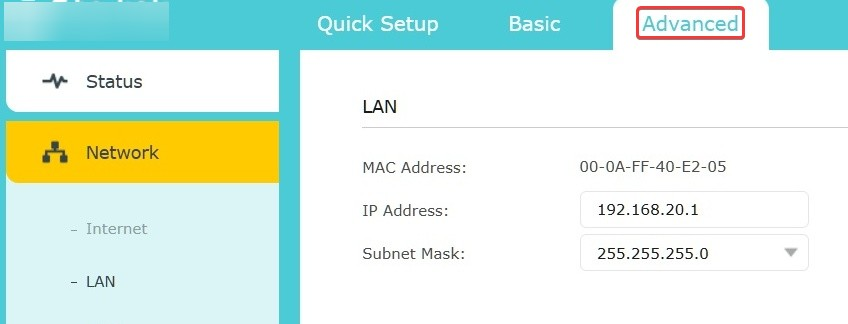
admin/admin) — if those don’t work, check the sticker on the router or your manual. - Go to Advanced → Network → LAN (path may vary slightly by model).
- In the IP Address field enter the new gateway (for example
192.168.1.2or10.0.0.1). - Save / Apply. The router will usually reboot to apply the change.
- After reboot, point your browser to the new IP to continue configuring.
Tip: If your router’s DHCP server still hands out addresses in the old range (e.g., 192.168.0.x), update the DHCP pool to a matching range (for 192.168.1.2 you might use 192.168.1.100–192.168.1.199).
D-Link (typical steps)
- Access the admin page (try http://192.168.0.1 or check your device label).
- Log in (often
adminas user; password may beadminor blank on older units). - Find Setup → Network Settings (menu wording varies with firmware).
- Locate Router IP Address (or similar) and type the new gateway you prefer.
- Save settings — router may reboot.
- Reconnect using the new gateway IP in your browser.
NETGEAR
- Open a browser and visit 192.168.1.1, 192.168.0.1, or routerlogin.net.
- Log in (default often admin / password).
- Go to Advanced → Setup → LAN Setup.
- Under LAN TCP/IP Setup change the IP Address to the new gateway (for example
10.10.10.1). - Click Apply. The router will reboot and the new IP will be active.
- Use the new IP in your browser to continue settings.
Smart Security Tips
Your Wi-Fi is the doorway to everything you do online so giving it a little attention goes a long way. These simple habits make your connection smoother and far more secure.
FAQs
Why can’t I open 192.168.1.1 on my browser?
Make sure you’re connected to your home Wi-Fi and not using mobile data. Also, check that you typed the address correctly with numbers, not letters.
Is 192.168.1.1 the same for all routers?
Not always. Some routers use other addresses like 192.168.0.1 or 10.0.0.1, but most popular brands use 192.168.1.1 as the default gateway.
Can changing my IP address improve security?
Yes, changing your router’s IP can make it harder for unauthorized users to guess your network setup. It’s a simple but effective safety step.
Can I change my router password?
Yes, once you log in to 192.168.1.1, go to Wireless or Security Settings to set a new password. Always use a strong, unique one.